You have following integrations available:
You may also use the automation blocks Notify Mattermost User and Notify in Mattermost Channel in your own Automation templates.
Once you have chosen an automation template it opens up and you find a Mattermost icon in the second line. Clicking on it you will see +Add new account and maybe existing credentials. If you are using the Mattermost integration the first time, you have to click on +Add new account and then will be asked to provide information about the Mattermost server. Enter the following values:
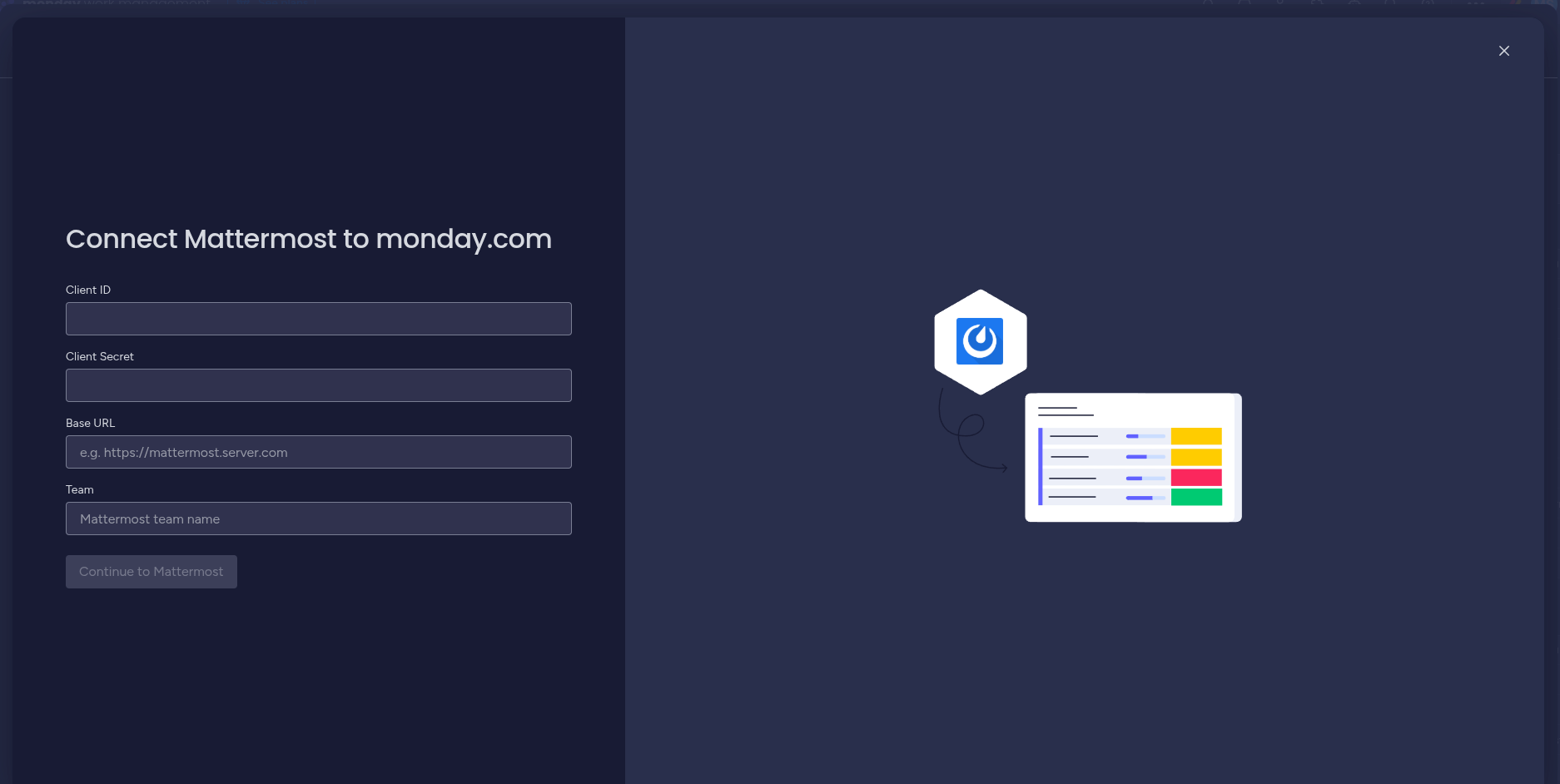
After submission of the data, you will be forwarded to the Mattermost server to login.
When successfully logged in, you may be asked to allow the integration to access your Mattermost user account. Once that done you can continue with selecting a user or channel, respectively.
You can create several Mattermost credentials and you may choose any of these for your automations. You can identify the credentials as <user>@<team>@<server url>.
Notes for the admin of the Mattermost server:
https://mmmi.nyxophyl.net/auth/callback. Once created, you can provide the Client ID and Client Secret of the
application.
All integrations need at least:
Just click on notify and type the message that should be sent when a certain action is triggered. You can use the provided fields to get content from the board in the message.
Each integration either sends the message to a user or a channel on the Mattemost server.
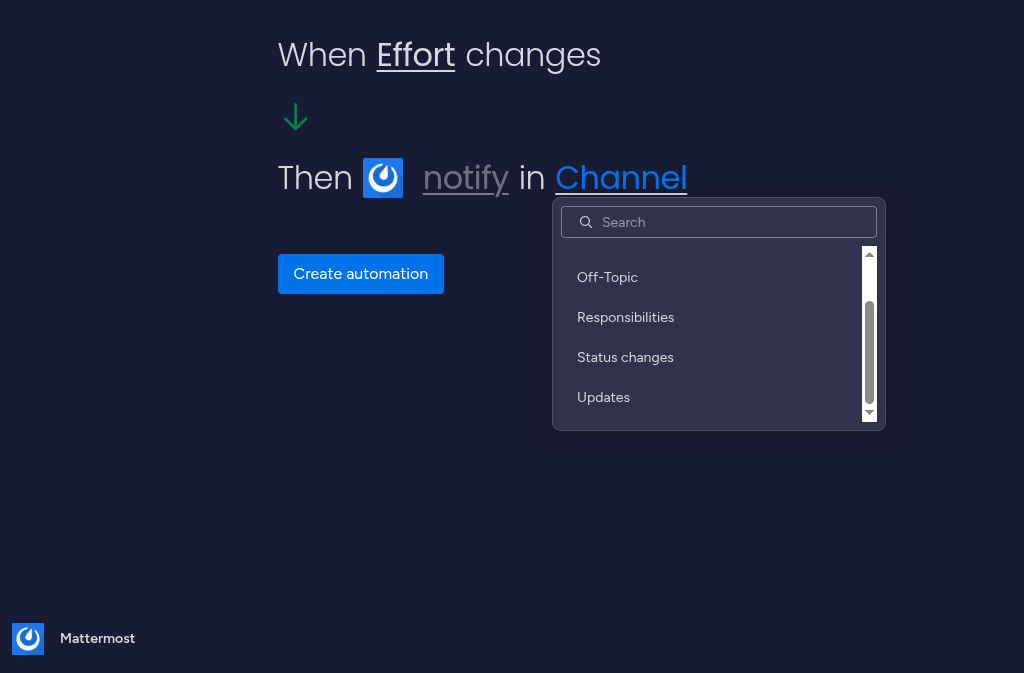
After providing all information of the integration and clicked on the button Create automation, the integration is ready.